· 3 min read
How to Fix IPTV Buffering on Firestick: 5 Hidden Settings (2026 Guide)
Struggling with buffering? Learn the 5 hidden Firestick settings to fix IPTV lag and enjoy 4K streaming without interruptions.
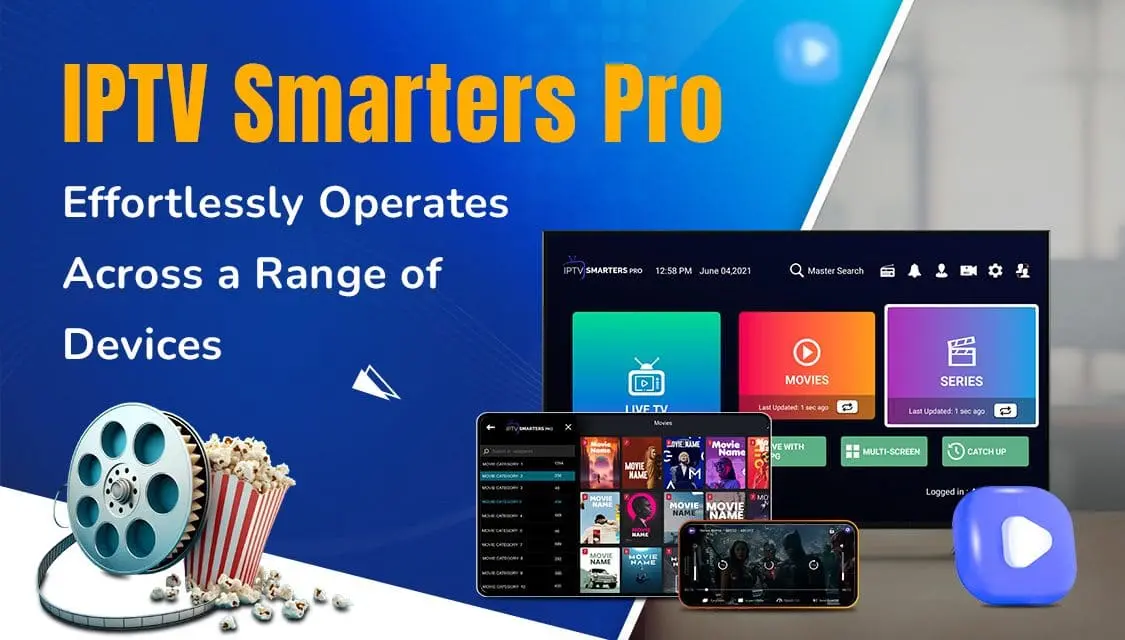
How to Fix IPTV Buffering on Firestick: 5 Hidden Settings (2026 Guide)
Stop Lag and Enjoy Uninterrupted 4K Streaming
To fix IPTV buffering on Firestick, you should clear the app cache, change the video buffer size via Hardware Acceleration, and use a VPN to bypass ISP throttling. Additionally, switching to an external player like VLC (optimized for the Best IPTV App 2026) and ensuring a high-speed Wi-Fi connection (25Mbps+) will provide smooth, uninterrupted 4K streaming.
Why Does IPTV Buffer on Firestick?
Many users face problems like buffering, freezing, or app crashes while watching their favorite content. This is often caused by:
- ISP Throttling: Your provider slowing down your connection during high-bandwidth usage.
- Hardware Limitations: Firestick processor being overwhelmed by high-bitrate 4K streams.
- Cache Overload: Temporary data buildup slowing down the application performance.
- Outdated Apps: Using old versions of IPTV players that lack the latest optimizations.
Step 1: Changing Video Buffer Size (Hardware Acceleration)
Most buffering issues on Firestick are caused by the default player’s inability to handle high-bitrate 4K streams.
- Open your IPTV App: Launch Smarters Pro or your preferred player.
- Go to Settings: Navigate to the Player Settings menu.
- Toggle Hardware Acceleration: Select Hardware Decoding or HW Acceleration and toggle it to Enabled.
- Restart the App: Close and relaunch to ensure the buffer size is optimized.
Step 2: Use a VPN to Bypass ISP Throttling
Your Internet Service Provider (ISP) may intentionally slow down your connection when it detects high-bandwidth streaming from IPTV servers.
- Selective Throttling: ISPs often target streaming ports during peak hours (evenings/weekends).
- Hiding Your Traffic: A VPN encrypts your data, making it impossible for the ISP to see what you are streaming.
- Recommended Tools: Use premium providers like NordVPN or ExpressVPN for the best stability.
Step 3: Switch to External Players (VLC/MX Player)
If the built-in player still lags, using an external app with better codec support is the best solution for 4K performance.
- Universal Codec Support: VLC handles high-bitrate HEVC (H.265) files better than basic android players.
- Customizable Buffering: MX Player allows you to increase the “Custom Buffer” size in its advanced settings.
- Better Stability: External players are often more stable during long live streaming sessions.
Speed Comparison: IPTV Player Performance
| Player Type | Buffering Speed | Codec Support | Optimization Level |
|---|---|---|---|
| Built-in Player | Standard | Limited | Balanced |
| VLC for Fire | Fast (Pre-fetch) | Universal | High (4K) |
| MX Player Pro | Ultra-Fast | Universal + HW+ | Extreme (8K Ready) |
Step 4: Clear App Cache Regularly
A “full” cache slows down the processor, leading to frame drops and audio-sync issues.
- Go to Firestick Settings > Applications.
- Select Manage Installed Applications.
- Find your IPTV app and select Clear Cache.
- (Optional) Select Clear Data if you are resetting your login (Note: this removes your playlist).
Final Thoughts on Firestick Streaming
Fixing buffering is all about removing the “bottlenecks” between your internet and your screen. By following these steps, you can turn a laggy Firestick into a high-performance streaming machine.
[!IMPORTANT] > Pro Tip: If you’ve tried everything and still experience lag, your provider might be the issue. Check our High-Speed Premium Subscription for zero-buffering 4K streams optimized for 2026.
FAQs: Troubleshooting Firestick IPTV
How to fix “Black Screen” on Firestick?
If you see a black screen but hear audio, it’s a codec mismatch. Switch your player to Software Decoding in the app settings or use an external player like MX Player.
Why does my IPTV buffer only at night?
This is usually caused by ISP Throttling during peak hours. Using a VPN is the most effective way to bypass this specific issue.
Is 100Mbps enough for 4K IPTV?
Yes, 100Mbps is more than enough. For stable 4K IPTV streaming, you only need a consistent 25Mbps.
Does Hardware Acceleration really help?
Yes, it offloads the video decoding task from the CPU to the specialized GPU on the Firestick, significantly reducing lag.
Last Updated: February 21, 2026